How to Make a Free PNGTuber with veadotube mini
You can set up a 2D PNGTuber today for $0 and zero webcam: draw two to four transparent PNG sprites on the same canvas size, load them into veadotube mini, set your microphone threshold, and capture the window in OBS Studio.
Five Steps from Blank Canvas to Live OBS Scene
Every tool below is free and runs natively on Windows, macOS, and Linux.
-
Create 2 to 4 Aligned Transparent PNGs in Krita
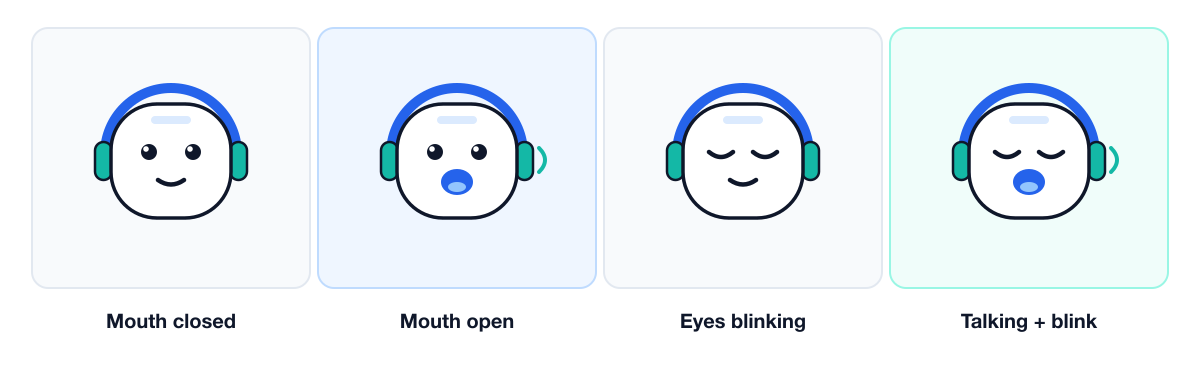
Open a square canvas (1024x1024 px works well) in Krita or your preferred drawing app with the background layer hidden. Draw your character base on one layer, place the mouth on a separate layer, and place eyes on a third layer. Export four transparent PNGs without moving the canvas: closed-open-eyes.png, open-open-eyes.png, closed-blink.png, and open-blink.png.
-
Install veadotube mini and Load Your State Slots
Download veadotube mini from the official itch.io page (free, name your own price) for Windows, macOS, or Linux. Launch the app, pick your primary microphone from the top device list, and assign each PNG to the four slots inside the default state: closed mouth, open mouth, closed mouth blinking, and open mouth blinking.
-
Set Microphone Threshold and Talk Motion
Speak at your normal streaming volume while watching the volume bar at the bottom of veadotube mini. Drag the volume threshold slider just above your room noise and keyboard clicks so the mouth closes completely when you pause. Pick a subtle bounce or jump transition on the talking state so your avatar reacts without shaking too hard.
-
Add Extra Expression States on Hotkeys (Optional)
veadotube mini lets you create extra state slots (for example, happy, surprised, or holding a controller) and trigger them with keyboard shortcuts, mouse buttons, a gamepad, or a Stream Deck. Keep 2 or 3 memorable hotkeys you can hit without looking down.
-
Capture Cleanly in OBS Studio and Record a 60-Second Test
In veadotube mini, select either transparent background mode (where supported) or a solid backdrop color that does not appear on your character (bright green or magenta). Add veadotube mini to OBS Studio as a Game Capture or Window Capture source, enable Allow Transparency or apply a Chroma Key filter, resize to the corner of your canvas, and record a 60-second test clip.
PNGTuber File Specs and Recommended Settings
| Setting | Recommended Value | Why It Matters |
|---|---|---|
| Canvas size | 1024x1024 px (or 1500x1500 px) | Sharp on 1080p OBS streams without bloating memory. |
| File format | Transparent PNG (or animated GIF) | Prevents white boxes around your character silhouette. |
| Alignment | Identical head position in all 4 files | Keeps the body steady while eyes and mouth animate. |
| Line contrast | Medium-bold outer outline | Reads clearly when scaled down to a stream corner. |
| Chroma color | Color absent from outfit and eyes | Stops OBS Chroma Key from erasing parts of your hair or clothes. |
When to Stay PNGTuber vs Upgrade to Live2D or 3D
A PNGTuber setup is not just a temporary placeholder. Many commentary, art, coding, and cozy gaming channels stick with PNGTuber avatars permanently because they leave almost all GPU power free for games, need no lighting setup, and never lose tracking when you lean back or take a sip of water.
Consider upgrading to a face-tracked avatar only when you want specific motion features:
- Move to 3D VRM (VRoid Studio + VSeeFace, Warudo, or 3tene) if you want full 3D rotation, customizable outfits at zero software cost, or virtual room scenes.
- Move to 2D Live2D (Live2D Cubism + VTube Studio) if you want an animated anime illustration with fluid physics and already have a webcam or Face ID iPhone.
Whenever you want to check hardware compatibility or plan a switch, use the VTuber Setup Picker to pick a new tool combination or browse the full VTuber software comparison.
PNGTuber FAQ
Do I need to be good at drawing to make a PNGTuber?
No. Simple geometric mascots, chibi icons, and cel-shaded busts often read better in a small stream corner than overly detailed portraits. You can also test veadotube mini with placeholder shapes before refining your design.
How many images do I strictly need for veadotube mini?
Only two transparent PNG images are required: mouth closed and mouth open. Adding two blinking variants (four images total) makes your avatar feel more natural during quiet pauses.
Can PNGTubers use animated GIFs instead of static PNGs?
Yes. The official veadotube mini page lists support for animated images such as GIFs, so you can add subtle hair sway, sparkles, or ear motion while keeping low CPU usage.
When should I upgrade from a PNGTuber to Live2D or 3D VRM?
Stay with PNGTuber while you build a consistent streaming habit and audio workflow. Upgrade to 3D VRM (VRoid Studio) or Live2D (VTube Studio) once you want continuous head tilt, eyebrow tracking, or hand gestures and know your computer has spare GPU headroom.